Recognize returning customers
Search by name, phone or email, load the matching customer’s details and create the next job under that client. Review related work in the client’s service history.
Bring bookings, dispatch, technicians and parts into one connected workspace. Keep the day's work moving, with the details close at hand.
See the latest system features →Explore light & dark themes →Team / Schedule / Next steps
Plan the next visit from the field, keep customer history together, and carry reviewed prices into the work. Explore the latest additions for office staff and technicians.
Search by name, phone or email, load the matching customer’s details and create the next job under that client. Review related work in the client’s service history.
Owner controls manage postal zones, zone charges, brands and custom tiers. Export rates or presets, edit a template and review a batch upload before applying it.
Cleaner mobile Job sections and compact Messenger controls reduce repeated borders and padding while keeping the fields, actions and useful groupings in view.
Service work spans the office, the road and the customer's site. Synalytics brings those working details together so teams can plan, coordinate and follow through.
Customer and appliance details, visits, notes, parts and files belong with the job. Keep previous work in view as the next step takes shape.
Use daily schedules, a weekly planner and technician availability to organize appointments and see how work fits across the team.
Connect parts requests, office responsibilities and follow-up work to the records that need attention.
Keep estimates, invoices, claims and booking reports close to the work. Review outstanding actions without losing the customer context.
Coordinate office staff and field technicians with role-based access, mobile views, time tracking and shared training guides.
Prepare job photos in Marketing Studio with editing tools and format templates for social posts and advertising assets. Review images before sharing them.
Bright and clear, or calm and dark. Explore four appearance options using the same sample workspace, and choose the look you prefer for your working day.
Your preference, your view. This preview only changes the sample above. After signing in, use Appearance to choose your workspace theme. Your choice is saved for your employee profile in that browser when browser storage is available.
Open employee loginExplore nineteen core operating views, from the first booking to the office review. These simplified sample previews use fictional records and example numbers; they are not live application screens.
Find the job, understand its current stage and open the details your team needs for the next step.
Load a matching customer profile or create a new one, then confirm the service location, appliance and reported issue. As the work progresses, staff can return to the same job for visit notes, photos, parts requests and office actions. This gives the next person a place to understand what has already happened before taking over.
A customer calls about a washer. The office records the request and plans a visit. After diagnosis, the technician adds findings and a part request; the office can review those details when arranging the return visit.
Open the job before changing the appointment or following up. A planned service date still needs the appropriate arrival-window confirmation.
| Job / customer | Appliance | Stage |
|---|---|---|
| #DEMO-101 · Cedar HouseService visit · Technician A | Washer | Scheduled |
| #DEMO-102 · Maple CourtReturn visit · Technician B | Refrigerator | Waiting for parts |
| #DEMO-103 · Birch PlaceReport recorded | Dryer | Completed |
Customer context → Visit history → Parts → Billing → Follow-up
Coordinate service dates and technician assignments with views designed for both immediate dispatch and upcoming work.
The daily view helps dispatch work through the current day, while the weekly planner makes upcoming assignments easier to review. The schedule list offers a compact record view, and technician availability adds working hours and blocked-time context to planning.
A repair needs a return visit next week. Review the job, technician availability and existing appointments before choosing the next date, then confirm the arrival window with the customer.
Use the map for location and travel context. Review past visit and dispatch history on its original date when you need to understand earlier arrangements.
| Team | Monday | Tuesday | Wednesday |
|---|---|---|---|
| Tech A | Service visit9–11 AM | Diagnosis1–3 PM | — |
| Tech B | — | Return visit10 AM–12 PM | Service visit9–11 AM |
| Tech C | Parts pickup8–9 AM | — | Diagnosis1–3 PM |
Illustrative three-day excerpt. Empty cells do not indicate technician availability.
Connect the parts process to the job that needs it, so the office and field team can see what is still outstanding.
Parts work can involve several handoffs: a technician identifies the need, the office reviews the request, purchasing records an order, and staff record receipt and use. Keeping the part with its job helps the next person see which step is outstanding.
A control board is requested for a repair. Check available stock, review purchase approval when needed, record supplier order details and receipt, then coordinate the next service visit.
Receiving a part and confirming a return appointment are separate steps. Review the job before promising a service date.
| Part / job | Qty | Progress |
|---|---|---|
| Drain pump#DEMO-101 · Example supplier | 1 | Received |
| Control board#DEMO-102 · Example supplier | 1 | On order |
| Door seal#DEMO-104 · Review needed | 1 | Requested |
Example queue excerpt. Summary counts represent a fictional wider queue.
Use booking reports and operational records to review activity, identify outstanding work and support the next office action.
Booking and operational reports help the office review activity over a selected period. Staff attribution supports understanding who recorded bookings, while the underlying job information gives context that a count alone cannot provide.
A manager reviews a month of bookings by staff, then checks the related job records to understand outcomes and outstanding follow-up work.
Booking totals are not automatically completed repairs, collected revenue or payroll calculations. Use the relevant status, date range and report for the question you are answering.
Bookings attributed to each administrator · illustrative values
Example counts illustrate a reporting view, not customer results or performance claims.
Bring the schedule into a geographic view, with numbered stops and technician routes to help dispatch coordinate the day.
Map views bring saved job locations and technician stop order together. This helps dispatch see where appointments sit in relation to one another, review a technician route and look at travel information while planning the day.
An additional visit comes in. Filter to the relevant technician and date, compare its location with existing stops, and review the planned order before changing the schedule.
Map pins and status colours describe saved information. They should not be interpreted as continuous live tracking of a technician. Travel features depend on configured mapping services.
Schematic only, not a real map or live GPS. Map and travel services require configured integrations.
Bring shared calls, messages and customer follow-ups into the office workflow.
The Call Center brings browser calling, waiting callers, voicemail and customer follow-up records into the workspace when the phone integration is configured. It gives staff a place to review communication context while deciding what needs attention next.
A customer leaves a voicemail about a return visit. An authorized staff member reviews the message, checks the job and parts status, then follows up with the customer.
Live calls and SMS require a supported provider, a connected number and configuration. Provider availability and usage charges apply; the public preview does not place calls.
| Example conversation | Next step |
|---|---|
| Cedar HouseService appointment enquiry | Review request |
| Maple CourtMissed call · callback requested | Follow up |
Illustrative queue. Live calling and SMS require provider configuration, a connected number and applicable usage charges.
Give authorized staff a connected email workspace for customer enquiries, supplier updates and day-to-day correspondence.
The email workspace supports reading conversations, searching messages and preparing replies, forwards and attachments from connected mailboxes. Drafts let staff prepare a response before sending, while mailbox permissions determine who can access the correspondence.
A supplier sends a collection update. Review the email, confirm the related part and job details, and prepare a reply before coordinating the collection with the team.
The connected provider handles email delivery. A prepared draft or accepted send request is not proof that the recipient has read the message.
Thank you for the update. Our office will review the collection arrangements and coordinate the next visit.
Example draft · No message is sent from this preview.Requires a connected supported mailbox and authorized access. Sending and receiving depend on the email provider.
Coordinate internally without leaving the workspace, using direct conversations and group discussions.
Direct conversations and permitted group chats give staff a place to ask questions and share operational updates. Team Messenger keeps internal communication accessible while staff use other modules, with unread indicators and conversation history.
The office tells a technician that a part has arrived. The technician reviews the job and responds in the team conversation, then the office updates the appointment through the scheduling workflow.
Keep durable job decisions and appointment changes in the relevant record. A chat message by itself does not update the job or complete an assigned task.
The example part has arrived. Please review the return visit before confirming a time.
Thanks. I will check the job details and coordinate with the office.
I have added the collection information to the job record.
Fictional internal conversation. Access is limited to the conversation participants under the system's permissions.
Keep stock quantities and storage locations visible before ordering more parts or planning the next repair.
Inventory distinguishes physical stock from quantities reserved for jobs. Location information helps staff identify whether a part is in the office or a service vehicle, and movements help keep the stock record aligned with how parts are handled.
A part is needed for tomorrow. Check the available quantity at each location, reserve it for the job and record the appropriate transfer or receipt through the stock workflow.
Saved counts depend on receiving, transfers and usage being recorded. Review the physical item when a count or location looks uncertain.
| Part / location | On hand | Reserved | Available |
|---|---|---|---|
| Drain pumpMain stockroom | 8 | 2 | 6 |
| Inlet valveService vehicle A | 3 | 1 | 2 |
| Door sealMain stockroom | 4 | 0 | 4 |
Fictional stock counts. Reservations and movements are recorded through the inventory workflow.
Bring vehicles and issued equipment into an organized asset register, with responsibility and condition recorded together.
Fleet and asset records hold identification details alongside assigned staff, condition and location. Issue and return dates help document custody, while purchase and warranty information provide useful context when equipment needs attention.
A phone is issued to a new team member. Record the device details, assignment and issue date. When it is returned, update condition and location so the register reflects the handover.
The asset register records custody and equipment details. It does not indicate live device or vehicle location.
| Asset | Custody | Condition |
|---|---|---|
| VAN-DEMO-01Service vehicle | Technician A | Good |
| PHONE-DEMO-02Issued phone | Office coordinator | Good |
| TOOL-DEMO-03Diagnostic equipment | Storage room | Review needed |
Illustrative asset register. Locations are saved records, not live tracking.
Prepare images for your brand with an editing workspace and reusable size templates, keeping the source job close at hand.
Marketing Studio provides a place to prepare uploaded images or job photos for use in promotional artwork. Adjust framing and image appearance, choose an available size template and export an asset for review in its intended placement.
Select an approved service photo, create a square social image and a landscape advertising version, then check each crop and any visible customer information before sharing.
Image preparation is separate from ad publishing. Confirm consent, remove private details and review each platform placement before uploading; the studio does not generate video campaigns.
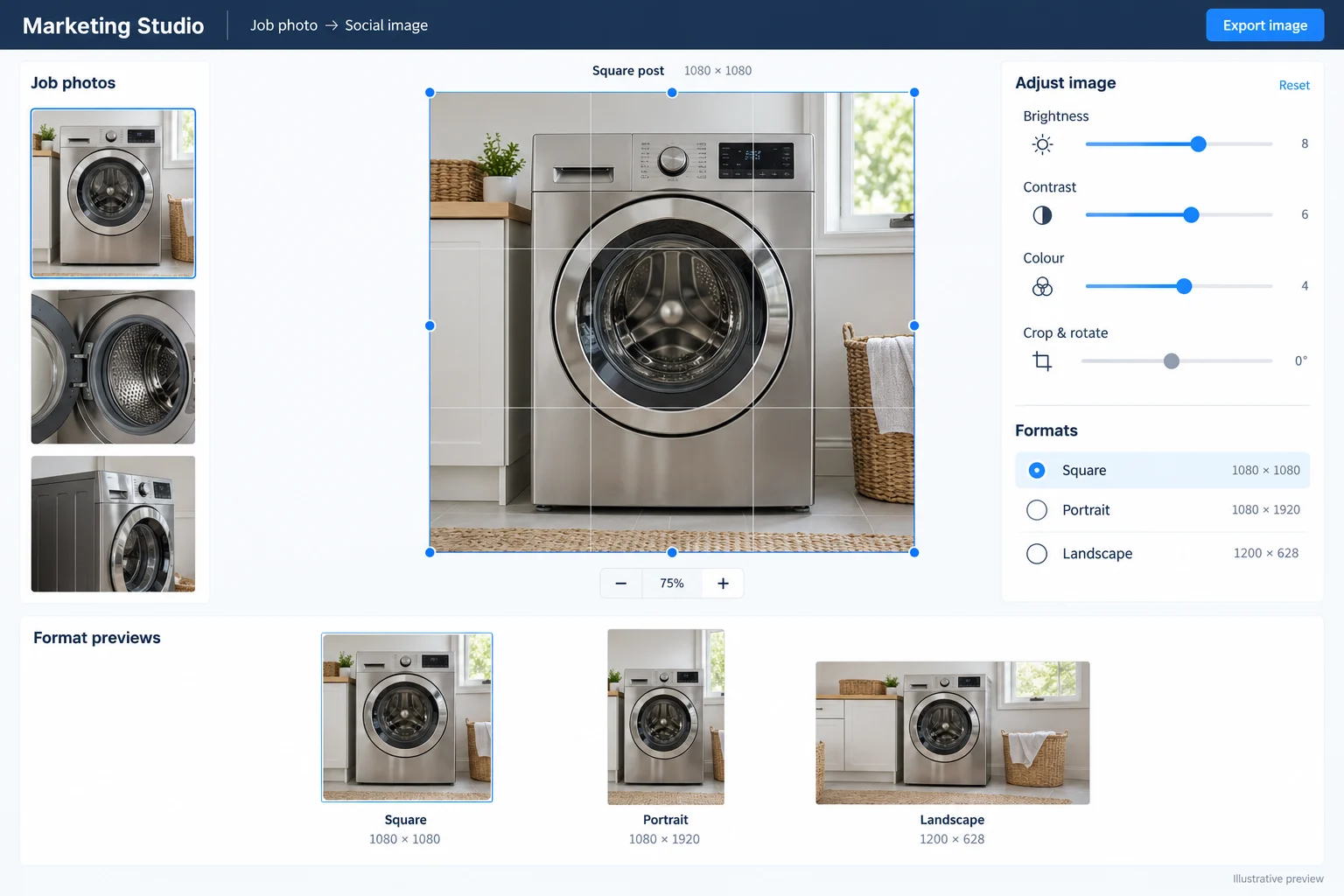
AI-generated editing preview with a fictional appliance photo and example controls, not an exact application screenshot. Select the image to enlarge. Review image permissions and platform requirements before sharing; no campaigns are published from this preview.
Give staff a clear way to record their working day, with review tools for authorized administrators.
Time Clock records clock-in, break and clock-out activity so staff and authorized reviewers can work from a shared attendance record. Date-range views and correction history support checking entries when something needs clarification.
An employee notices a missing clock-out. Use the correction workflow so the requested change and review can be followed, rather than relying only on a separate message.
Attendance review does not by itself determine pay, overtime or employment entitlements. Apply your approved payroll process to the reviewed records.
| Example employee | Clock in | Break | Clock out |
|---|---|---|---|
| Team member A | 8:00 AM | 30 min | 4:30 PM |
| Team member B | 8:30 AM | 30 min | 5:00 PM |
| Team member C | 9:00 AM | 30 min | 5:30 PM |
Fictional completed shifts. Attendance records support review; this example is not a payroll calculation.
Keep system guidance accessible alongside the modules staff use, so everyday workflows are easier to learn and repeat.
Module-specific work guides help staff learn where to find information and how to carry out common steps. They can be used during onboarding or as a reference when someone takes on an unfamiliar responsibility.
A staff member begins handling parts requests. Review the relevant guide, follow the request and approval steps, and return to the guidance when a different case comes up.
Guides explain system workflows. The actions a person can perform still depend on their role, permissions and your company procedures.
Customer details, appliances and the service request.
Dates, assignments and arrival-window confirmation.
Requests, approval, ordering and receipt.
Illustrative guide index. Available actions depend on the employee's role and permissions.
Give the office a team of specialist virtual assistants to help organize work, prepare checklists and bring the next decision to the right person. Your employees remain in control.
Staff select a specialist and use saved records to prepare a proposal. They review its evidence and missing details, then approve an appropriate internal handoff or return to the original module to perform the work. Proposal and review history keeps the decision traceable.
A return visit needs a part and a confirmed arrival window. Theo prepares the parts follow-up; Mira flags the scheduling details. Staff confirm receipt, check technician availability and contact the customer before saving the appointment.
Current capability: AI Admins is the workspace name. These assistants currently use saved-record rules and templates, not a connected generative AI model. Configured monitoring can identify work; it does not independently send customer messages, purchase parts, move jobs or authorize payments. Approval is not proof of completed work.
 AlexOversight & reviews
 MiraDispatch readiness
 TheoParts follow-up
 EzraEstimate worksheets
 IrisInvoice readiness
 SophieCustomer care
Sample job #DEMO-204 · Return visit
Illustrative layout and fictional work only. Rules and templates support staff; no connected AI model or autonomous employee is represented here.
Build a job-linked estimate that explains the proposed repair, parts and labour in one customer-ready document.
The technician records findings. Office staff and the assigned main Technician can prepare permitted estimate versions from the agreed scope and saved job pricing. Office staff review the current document and share the customer copy. An estimate supports the decision; it is not a payment or proof that the work was completed.
Estimate DEMO-E104 · Fictional example · CAD
| Proposed work | Qty | Amount |
|---|---|---|
| Replacement component | 1 | $180.00 |
| Repair labour | 1 | $120.00 |
Illustrative layout with fictional records. Amounts and tax are examples; actual company settings and permissions apply.
Bring the service record, itemized charges and customer balance together so the office can explain exactly what is being billed.
Confirm the work performed and the correct payer, then review the invoice. Saved customer copies and document history help the team track what was issued. Later billing adjustments follow the system’s existing permissions and history controls.
Maple House · Fictional customer · CAD
| Description | Amount |
|---|---|
| Replacement component | $180.00 |
| Repair labour | $120.00 |
| Example tax · 5% | $15.00 |
Illustrative layout with fictional records. Amounts and tax are examples; actual company settings and permissions apply.
Review payments alongside the invoice instead of treating a sent link or a customer promise as money received.
Staff review the amount, payment method and supporting reference. Online payment features depend on the company’s configured provider. A payment request, pending response or promise to pay does not settle an invoice. Authorized adjustment workflows retain their own history.
| Payment | Reference | Amount |
|---|---|---|
| Cash · recorded | DEMO-R001 | $100.00 |
Illustrative payment history. No live payment form or transaction is connected to this preview.
Illustrative layout with fictional records. Amounts and tax are examples; actual company settings and permissions apply.
Help the office organize follow-up, record customer commitments and keep ownership visible without losing the underlying invoice history.
Review the current invoice and verified payments before contacting the customer. Save the conversation outcome and next follow-up. Owner or Manager approval is required for agency referrals and Unrecoverable decisions; those operational labels do not erase the invoice or prove a refund. Messages are not sent automatically.
Owner: Sample office administrator
Next action: Review the balance and call the customer.
Latest note: Customer requested a copy of the invoice.
Draft: Ready for staff review—not sent.
Illustrative layout with fictional records. Amounts and tax are examples; actual company settings and permissions apply.
Bring postal zones, appliance categories and rate options into one view. Owners manage separate Service / Diagnostic and Labour charges for each zone, brand presets and custom tiers. Staff can review suggested rates inside a job and save the selected pricing.
Rate and preset editing · Owner only
An example of a reviewed central service zone. Select another area to compare its sample rate.
Explore postal coverage and rate shading, select areas, and sketch draft coverage boundaries for review. Unresolved postal assignments stay clearly marked.
Flat-rate example · Zone-based service price
This sample waives the Standard service-call fee when the repair proceeds.
Illustrative expected costs, including any parts in this example. The staff planner also supports technician count, overhead, return visits and payment fees.
Optional. Choose a target to see a cost-based comparison. Your company target is set separately in the staff workspace.
Enter a target to compare the sample listed price with a cost-based option.
Use zones to review coverage and applicable flat rates. Luxury service uses a diagnostic/service-call fee plus hourly labour, without an A/B/C flat-rate tier.
Review labour, parts, travel and allowances, then compare a chosen margin target with listed and proposed prices. Estimates depend on the costs entered.
Review and save the chosen pricing in the job, then load it into an estimate or invoice draft when needed. Staff choose exact billing amounts and review documents before saving or sending. Price-book changes do not rewrite existing billing records.
Capture requests, coordinate appointments, follow up on parts and keep customer communication tied to the right job.
Review assigned work, record visit details and keep photos, repair notes and parts needs close to the service record.
Review activity, clarify ownership and use job history and reports to understand where attention is needed.
Keep each handoff grounded in the same job record.
Record customer, appliance and service details.
Choose the service date and coordinate the assigned technician.
Keep visit notes, parts and the next action connected.
Use the job history and reports to understand what happened.
Use Synalytics through a web browser on a desktop, laptop, tablet or phone. Responsive layouts adapt the workspace to the available screen, so office and field teams can work with the same system.
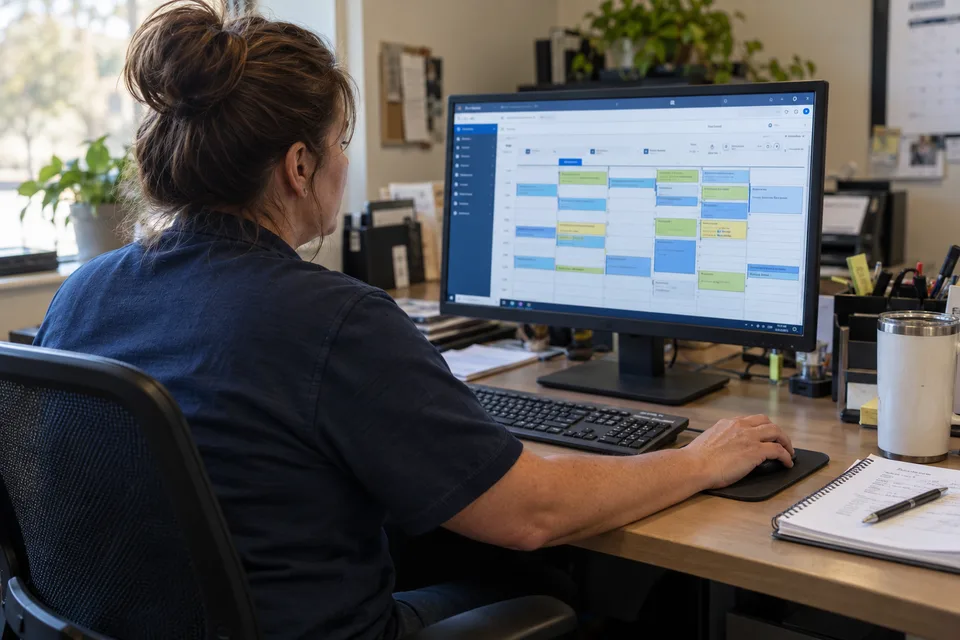
Give administrators room to review bookings, coordinate technician schedules and keep the next action in view.
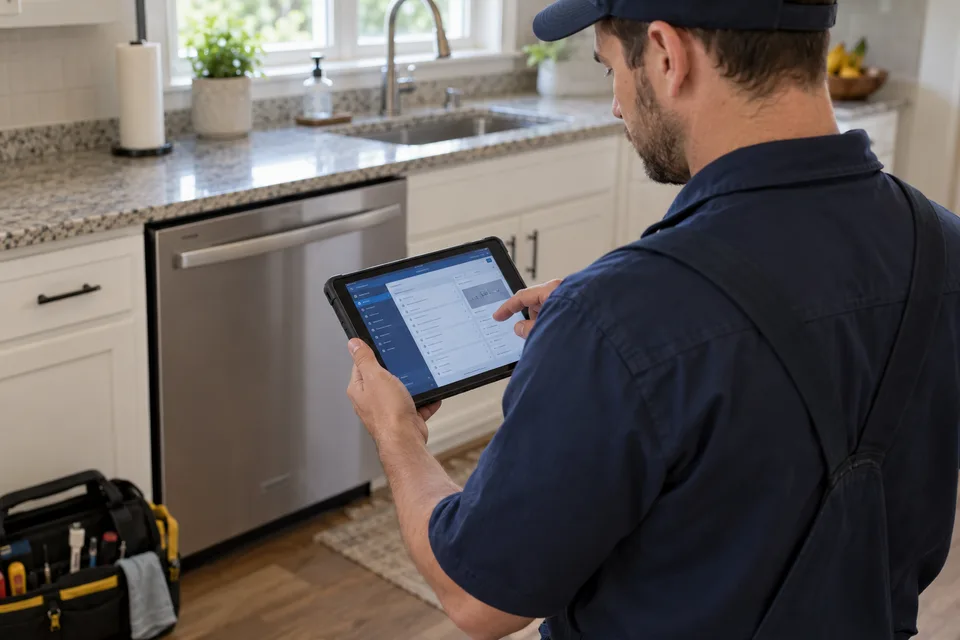
Review the job, check the service details and keep visit notes close while working at the customer’s location.
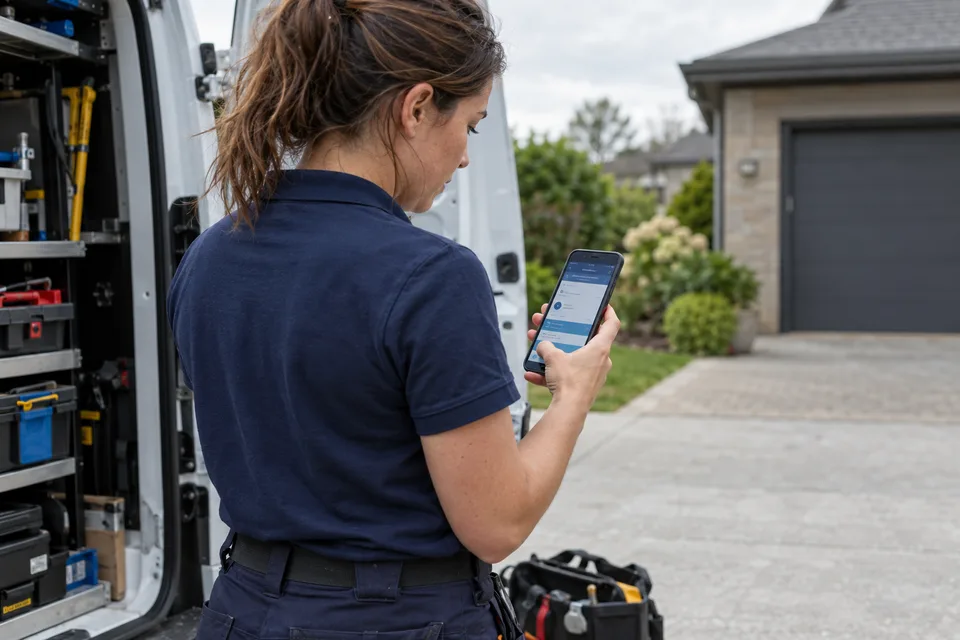
Review assigned work and appointment details from a phone before heading to the next visit.
AI-generated illustrative scenes with fictional people and example screen layouts. These are not photographs of our employees, customer locations or exact application screens.
Use the wider screen for job lists, schedules, reporting and office coordination. Responsive panels help keep related information in view where space allows.
Open the browser workspace on a tablet for a portable view of jobs and team operations. Layouts adjust to the screen size and orientation.
Access the mobile browser layout for assigned work, job details and technician workflows. Sign in with your existing employee account.
Browser-based access — no native iOS or Android app is required. Use an up-to-date browser and an internet connection. Camera, file upload, calling and image-editing features depend on browser support, device permissions and connected services. Compatibility with every device and browser version has not been certified.
See the technician mobile sample ↓A mobile browser workspace for reviewing assigned jobs and recording the work as it happens. Keep the visit, photos and parts close together, with access based on the technician's role and assignments.
Open an assigned job to review its location and appointment window. Use the work, photos and parts sections to carry the visit forward.
Simplified phone illustrations with fictional records. These are static samples, not interactive app screens. Internet access is required; no offline capability is implied.
Employee login ↗Technician A · 2 example visits
#DEMO-101 · Washer
Example service location
#DEMO-102 · Refrigerator
Example service location
Review the job before the visit.
Drain restriction identified.
Restriction cleared. Drain cycle completed during the test.
No further visit needed.
Illustration only. No report is saved from this page.
As more people share the workload, dispatch needs both the overall picture and the detail behind each visit. Use regional filters, technician routes and shared job records to organize work across your team.
Technician A · blue route / Technician B · dashed route
Technician C · regional route
Conceptual side-by-side regional illustrations, not a live multi-map dashboard. In the application, use the available province, city and technician filters to review saved routes. Pins do not show live technician GPS.
Review assignments across the daily and weekly schedule. Focus on a technician when planning a route, and return to the team view to understand the wider workload.
Keep availability, existing visits and travel context in the planning process before confirming the next appointment.
Use province and city filters to focus on a service area while keeping related job records available to authorized staff. Different regional views help dispatch work with the locations relevant to the day.
Shared communication remains subject to its existing permissions; a geographic filter is not a separate security boundary.
Coordinate office staff, technicians, parts handling and follow-up work through the relevant records. Role-based access helps give each person the tools appropriate to their responsibility.
As the team grows, review account access, working procedures and integration capacity alongside the operational workload.
Reliable operations need clear records, visible failures and a tested process for recovery. Synalytics includes tools that support that work.
The System Reliability workspace shows read checks and recent server-side request events, including failures and slow requests. Refresh the panel for current evidence.
Use job, appointment and relevant revision histories to understand earlier work before making the next change.
Use the recovery backup workflow and validate restores in an isolated environment as part of your company's continuity process.
Check representative workloads, connected services and staff workflows before a larger rollout. Monitoring does not guarantee uptime or certify unlimited capacity.
The value of a shared workspace comes from how people use the records together. Keep the job as the reference point as information moves between the office, the field and the next follow-up.
Review a customer request from a call or email, capture the service details in a job, and use scheduling and availability to plan the visit. Confirm the arrival window through the appointment workflow.
Record findings, identify the required part, check stock and follow the approval or ordering process. When the next step is ready, coordinate the return visit using the same job history.
Keep visit notes and files available for office review. Use the job's billing, claims and follow-up sections as appropriate, then review reports with the underlying records in view.
These examples describe staff workflows, not automatic actions. Sending a message, receiving stock or changing a planned date does not replace the separate review and confirmation steps for the job.
Synalytics Inc. designs systems that bring operational information, everyday workflows and analytics into a connected workspace.
Our focus is practical: help teams organize their work, understand their records and make informed decisions with clearer context.
Connect the people, records and processes involved in daily operations, from the first request to the next follow-up.
Bring activity and outcomes into view, with the underlying operational records available to help explain the numbers.
Design approachable workflows that help office staff, field teams and managers understand what needs attention and what comes next.
Interested in the platform or need help finding your team's workspace? Get in touch.
Service businesses coordinating office staff, technicians, jobs and parts, with workflows developed around appliance service operations.
Select Employee login to open app.synalytics.ca. Sign in with the account provided by your administrator and complete the verification requested for that session. Your team's records stay in the application; this public website does not collect login credentials.
Yes. The system includes office and technician workflows, with access determined by the employee's role and assignment. Desktop layouts support broader working views, while mobile layouts help field staff work with the information available to them.
Email requires an authorized supported mailbox. Live calls and SMS need the phone provider and office number configured. Map and travel features also depend on their integrations. Your administrator should complete and verify the services your team plans to use.
Parts management follows requests, approvals, orders and receipts for repairs. Inventory tracks stock quantities, reservations and locations. Together they help staff determine whether a part can come from existing stock or needs purchasing.
No. It prepares image assets using editing tools and format templates. Your team reviews the image, permissions and placement requirements before publishing through the relevant platform.
Begin with the roles, jobs and daily workflows your team needs. Have the administrator set up accounts and required integrations, review the work guides, and validate a representative booking-to-follow-up process before expanding usage.
No. These are simplified illustrations of the main workflows, using fictional records and example numbers. Customer records and staff schedules are not published on this website.